Authentication
Overview
The eSingPay REST API uses API keys to authenticate requests and identify the merchant making the request. Every protected endpoint requires an API key.
Create an API Key
- Sign in to the merchant Console.
- Open Merchant Settings, then select API Keys.
- Select New.
- Enter a name that identifies the integration using the key.
- Create the key and copy it from the confirmation window.
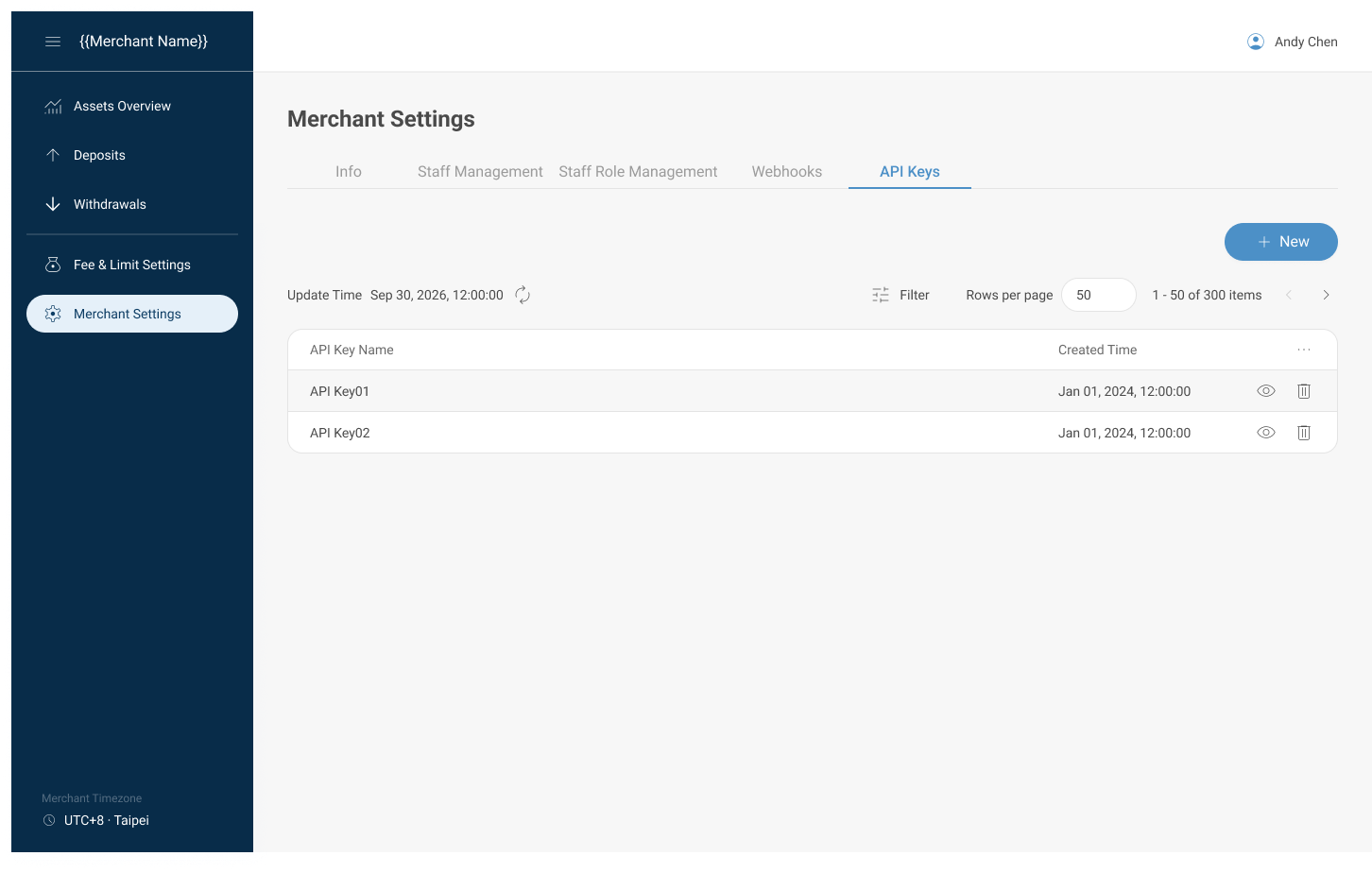
The API Keys page lists active keys and provides the option to create a new key.
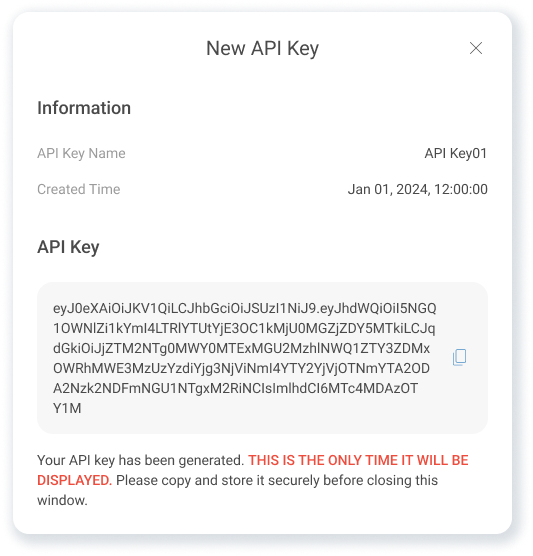
Copy the generated API key before closing the confirmation window.
The API key is displayed only once. You cannot view it again after closing the confirmation window. If you lose the key, create a replacement, update your integration, and revoke the old key.
Authenticate a Request
Send the API key in the Authorization header using the Bearer scheme:
Authorization: Bearer <api_key>
Do not send API keys in URLs, query parameters, or request bodies.
HTTP Example
GET /external/v1/wallets HTTP/1.1
Host: <api-host>
Authorization: Bearer <api_key>
Accept: application/json
cURL Example
curl --request GET \
  --url 'https://<api-host>/external/v1/wallets' \
  --header 'Accept: application/json' \
  --header 'Authorization: Bearer <api_key>'
Replace <api-host> with the API host for your environment and <api_key> with your API key.
Authentication Errors
Authentication and authorization errors use ErrorResponse.
| HTTP Status | Code | Message | Description |
|---|---|---|---|
401 | unauthorized | Unauthorized. | The API key is missing, malformed, invalid, or revoked. |
403 | forbidden | Forbidden. | Authentication succeeded, but the caller is not allowed to perform the requested operation. |
For security, a 401 response does not indicate whether an API key is unknown or has been revoked.
Store API Keys Securely
- Store API keys in a server-side secret manager or secure environment configuration.
- Do not commit API keys to source control.
- Do not write API keys to application logs.
- Do not include API keys in browser-delivered frontend code.
- Do not send API keys in URLs.
- Do not expose API keys in public issues, chat messages, or screenshots.
Rotate an API Key
To replace an API key without interrupting your integration:
- Create a new API key in the merchant Console.
- Update your integration to use the new key.
- Verify that the new key can successfully call the API.
- Revoke the old key from the API Keys page.
Revocation is permanent. Requests made with a revoked key receive a 401 Unauthorized response.